
Account criteria
RepliedΑυτό το περιεχόμενο είναι προς το παρόν διαθέσιμο στα αγγλικά.
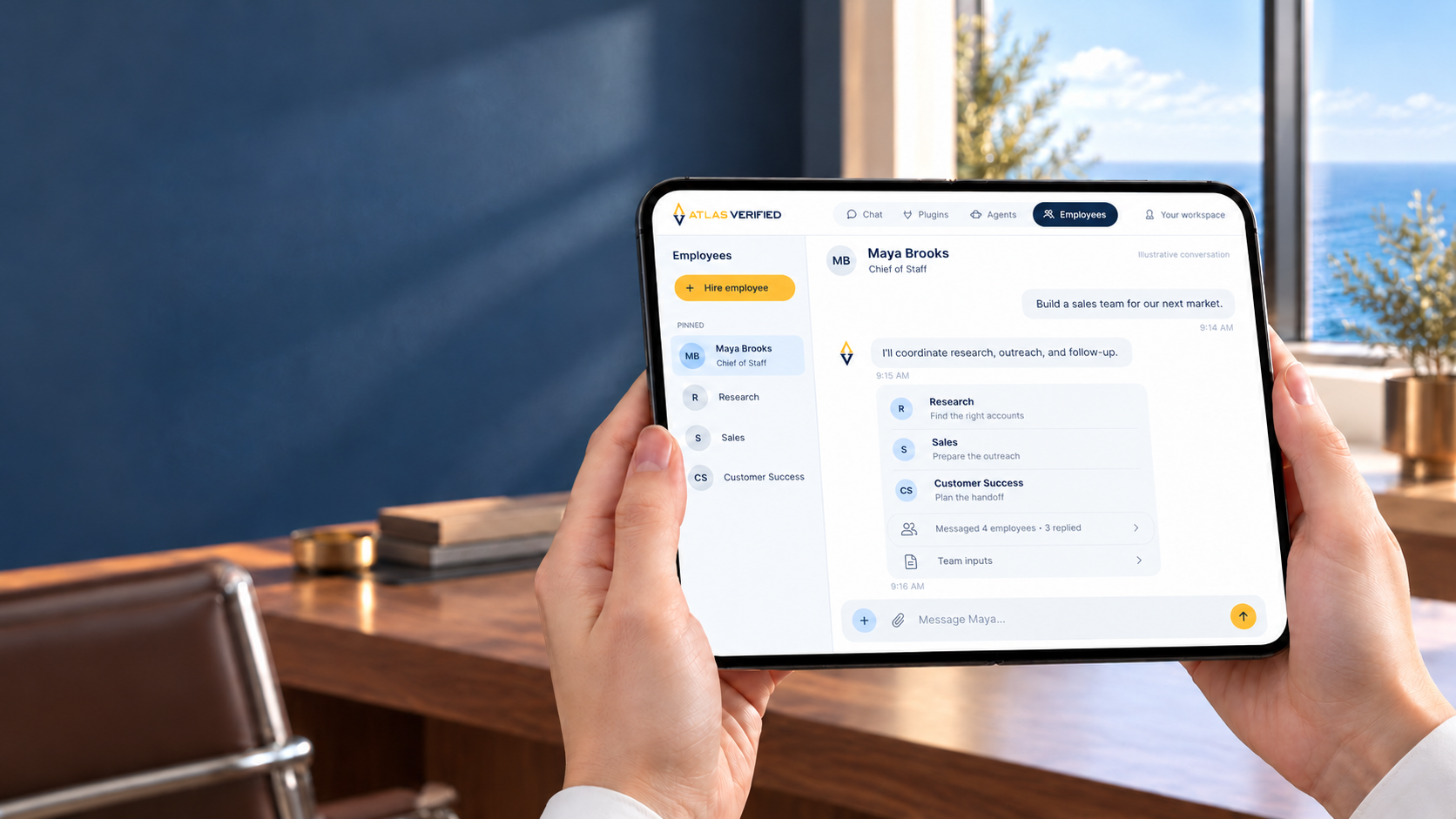
AI EmployeesBuild your team.
Build your team.
Give it real work.
Create role-based AI employees, talk through the work, bring the team together, and connect the tools and context each role needs.
Illustrative conversation · Concept device
An AI colleague to ask. A team to help.Start a conversation.
Start a conversation.
Build from there.
Give your employee the bigger picture, ask a follow-up, and work through the next step. The conversation stays with the role, so you have a place to return.
Choose an example
Interactive examples with fictional employees and sample work.
MBMaya BrooksChief of Staff Pinned
We’re entering a new market. Bring research, sales, and customer success into a launch plan.
A
I’ll ask each role for its part, bring the replies together, and show you the proposed next steps.
RResearchDefine the accounts and buying signals
SSalesPrepare the outreach and follow-up
CSCustomer SuccessDefine the onboarding handoff
Start with the account criteria. I want to review the plan before any outreach.
A
Understood. I’ll bring you the criteria and draft plan first.
Message Maya…
+ ↑
Bring the team into the conversationOne request.
One request.
The right people on it.
Your Chief of Staff can ask other employees for input, track their replies, and bring the pieces back into the conversation.
Illustrative workflow
MB
Maya · Chief of Staff
Collecting repliesBring together the plan for our next market.
Outreach approach
RepliedOnboarding handoff
RepliedDelivery capacity
Awaiting replyTeam inputs · collectingThree replies received · one still pending
Ask the team. See who responded. Continue with the context.Reply counts reflect received replies.
A conversation that moves the work forwardFrom “can you?”
From “can you?”
to “here it is.”
Keep the assignment, plan, checklist, and deliverable together. Review what’s proposed, see what’s blocked, and open the result when it’s ready.
Chat for the conversation. Work for the details.
Ready for your reviewProposed plan
A clear path before the work begins.
- 1Agree on the account criteria
Market, company profile, and buying signals.
- 2Collect input from the team
Research, sales, success, and operations.
- 3Deliver a market launch brief
Recommendations, sources, and open decisions.
Outreach stays subject to the configured approval policy.
Connected to the way you workGive the role
Give the role
the right tools.
Connect the services an employee needs, choose its access, and bring useful information into the same workflow.
Employee connectionsSales & Customer Success · example
IntercomCustomer conversationsConnected
GmailAccount connectionConnected
NotionTeam knowledgeConnected
Google SheetsShared planning recordsConnected
Search for more apps
01
Choose the account.
Use an organization connection or give one employee its own connection.
02
Choose the access.
Grant the tools that fit the role. Keep consequential actions behind the approvals you configure.
03
Bring your own systems.
Use supported apps, custom API connections, or incoming webhooks to bring your workflows together.
Example connections. Available operations and setup depend on the service and your configuration.
A place in the conversationWork arrives
Work arrives
by email, too.
Give an employee an email address, keep messages in its inbox, and follow the thread with attachments and delivery status.
Use chat to give direction. Use the inbox to see the conversation that work came from.
Employee email Attachments Delivery history
Incoming
Launch planning — updated brief
Alex Chen to Maya Brooks
[email protected] · sample employee address
Discuss it in chat
Return to Maya’s conversation to give direction or ask a follow-up.
Useful context, close to the roleThe brief. The files.
The brief. The files.
The things to remember.
Give your employee the material it needs to do the job. Keep original documents distinct from working notes and shared organization knowledge.
Working documents
Share the source material. Return to the files and records behind the conversation.
Market brief.pdf Account criteria.csv Onboarding guide.pdf
Memory and notes
Save useful preferences, pinned facts, and briefs for the employee to refer to.
Lead with the account’s needs. Bring proposed outreach back for review.
Shared organization context
Give different roles a common understanding of your company and its work.
Sample documents and notes. Access follows the employee’s configured permissions.
ATLAS VERIFIED
Market launch · sample briefA shared plan.
Ready to review.
Research, sales, and customer success inputs brought into one working brief.
01
Who to focus on
Account criteria and qualification questions.
02
How to begin
A proposed outreach and follow-up approach.
03
What still needs a decision
Operations capacity and launch approval.
Source references & team inputs attached
Something your team can useDon’t lose the work
Don’t lose the work
in the chat.
Open the brief, inspect the supporting material, and work through revisions. Keep a useful deliverable with its assignment and conversation.
Draft reports are available within your organization. Publishing creates a reader link you can share.
Create reports in AtlasYour team. Your decisions.Set the role.
Set the role.
Keep the controls.
Define what good work looks like and the boundaries around it. Give each employee a clear mission, the right access, and a cadence that fits the role.
Role & mission
Name the responsibility. Set instructions and a useful first assignment.
Tools & access
Choose the accounts, documents, and operations the role can use.
Approvals
Review proposed plans and configure when actions need your approval.
Schedule & availability
Choose the working cadence and keep the ability to pause the employee.
Start with one useful role. Expand the team around the work you actually need.
Company-managed AI
Keep company work in company hands.
When teams use personal AI accounts for work, important context can end up outside company systems. Give your team a shared Atlas workspace for the knowledge, workflows, and work they need to hand off.
- Manage access. Set which tools and records each role can use. Remove access when someone leaves.
- See AI usage. Review recorded usage by AI Employee and conversation.
- Keep shared work available. Authorized teammates can pick up shared playbooks and deliverables.
AI EmployeesStart with a role.
Start with a role.
Build from real work.
Choose a mission, connect the tools,
and give your first employee something useful to do.
Max includes employee workspace access. Available tools and usage depend on your plan, connected services, and configuration.
A few things
to know.
How is an employee different from a Cloud Agent?
An employee supports ongoing work around a role, with a conversation, working context, assignments, and connected tools. A Cloud Agent is designed around a recurring check or scheduled task.
Can employees work with each other?
Yes. An employee can request input from other employees within its configured access. Atlas tracks the requests and replies, and brings collected responses back to the requesting employee. A pending reply remains visible.
Can I connect the apps we already use?
Use supported app connections and grant access to the employee. Custom API connections and incoming webhooks offer other setup paths. Available operations vary by service.
Which plan includes AI Employees?
Max includes employee workspace access. Choose the plan for your team, then configure the roles, tools, and approval policies in your workspace.
Does every message automatically make changes?
No. Instructions, available tools, and approval policies determine what can happen. You can review proposed work, inspect the activity, and pause the employee.